🔧 Step 1 — Make Sure Samsung Health Is Up to Date
- Open the Google Play Store (or Galaxy Store)
- Check for updates to Samsung Health on both your phone and your watch
- Install the latest version if needed
⚙️ Step 2 — Enable Health Connect Permissions in Samsung Health
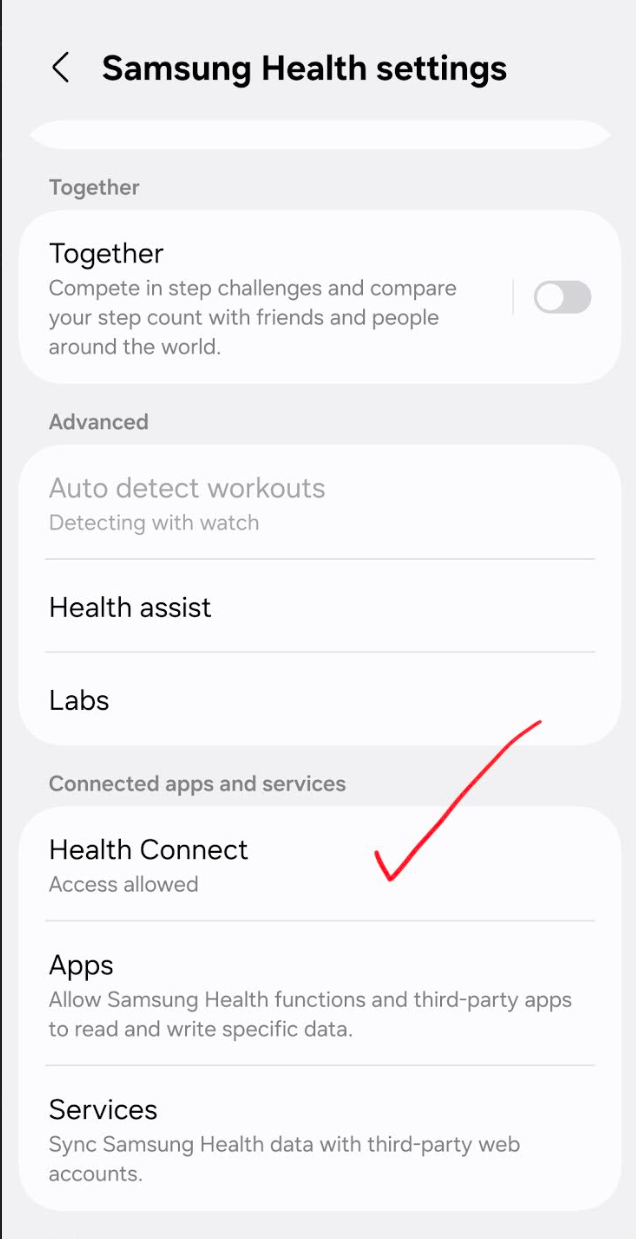
- Open the Samsung Health app
- Go to Settings → Health Connect → App permissions → Samsung Health
- Make sure all permissions are enabled so Health Connect can read your data
📱 Step 3 — Double-Check Permissions in Android Settings
- Open your phone’s Settings
- Search for “Health Connect”
- Tap Health Connect → App permissions → Samsung Health
- Ensure permissions are allowed
- Reopen Samsung Health after updating permissions
🔄 Step 4 — Sync Samsung Health Data
- In Samsung Health, go to:
Settings → Sync with Samsung account - Tap “Sync now” to make sure all your latest data is uploaded