
 Step 1 — Open Health Connect
If you don’t have it yet, download Health Connect from the Google Play Store:
👉 Health Connect – Apps on Google Play
✅ Step 2 — Grant App Permissions
- Open Health Connect
- Tap “App permissions”
- Select Offshift
- Make sure all permissions are granted
If not, enable them before continuing
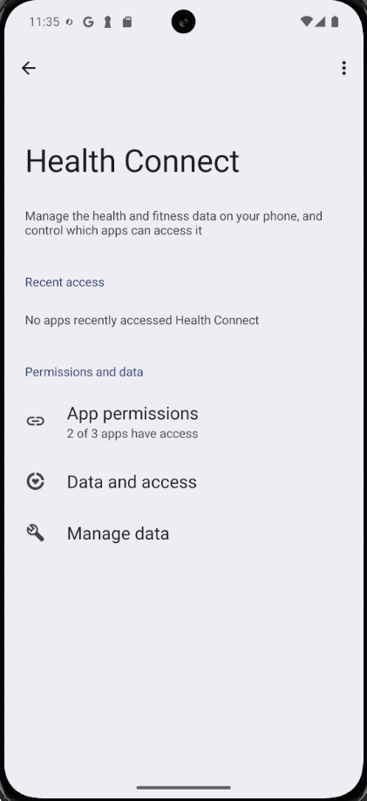
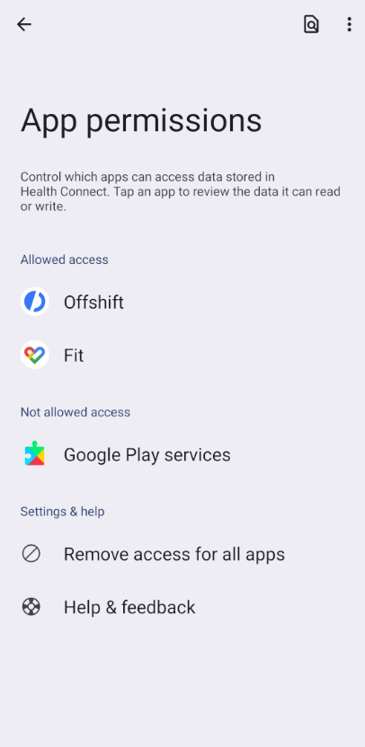
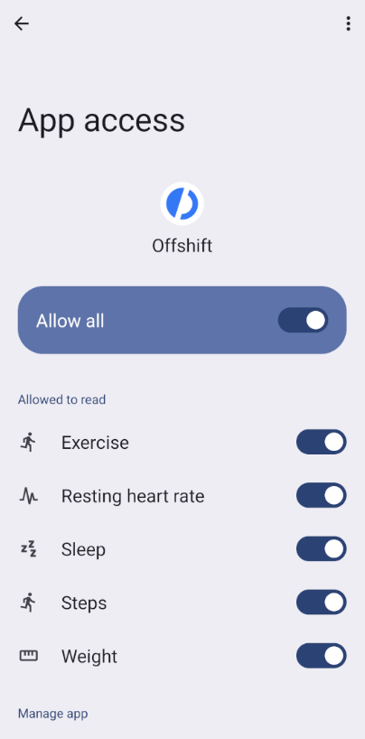
Verify that all permissions are granted before continuing
🔍 Step 3 — Check Data and Access
- Go back to the previous screen
- Tap “Data and access”
- Choose “Activity” → “Steps” → “See all entries”
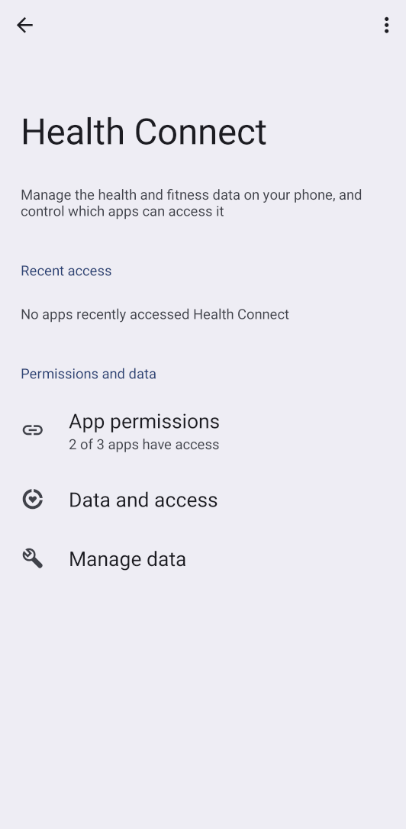
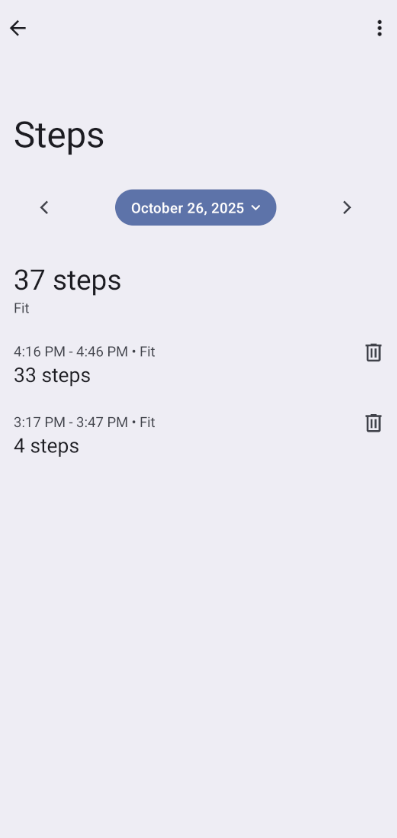
If you see no entries, Health Connect isn’t receiving step data from your wearable.
➡️ In this case, check your wearable’s app to ensure it’s set up to sync with Health Connect.
This document includes detailed guides for several wearable brands in the following sections.
📬 Step 4 — Contact Us if Steps Don’t Appear in Offshift
If everything looks correct in Health Connect, but your steps still don’t show up in Offshift:
- Send a bug report directly in the app, or
- Contact us at max@project-61.org
We’ll help you resolve it quickly.